
Teams
A team account is your account with colleagues in it. Everyone sees every tour, can open it, copy it, and plan their own alongside. Seats are arranged by email and billed on invoice.
Getting seats
Section titled “Getting seats”There is no button for it. Email info@g3ops.com with how many planners you have. Once seats are on your account, a Team section appears under Tours in Settings.
Inviting
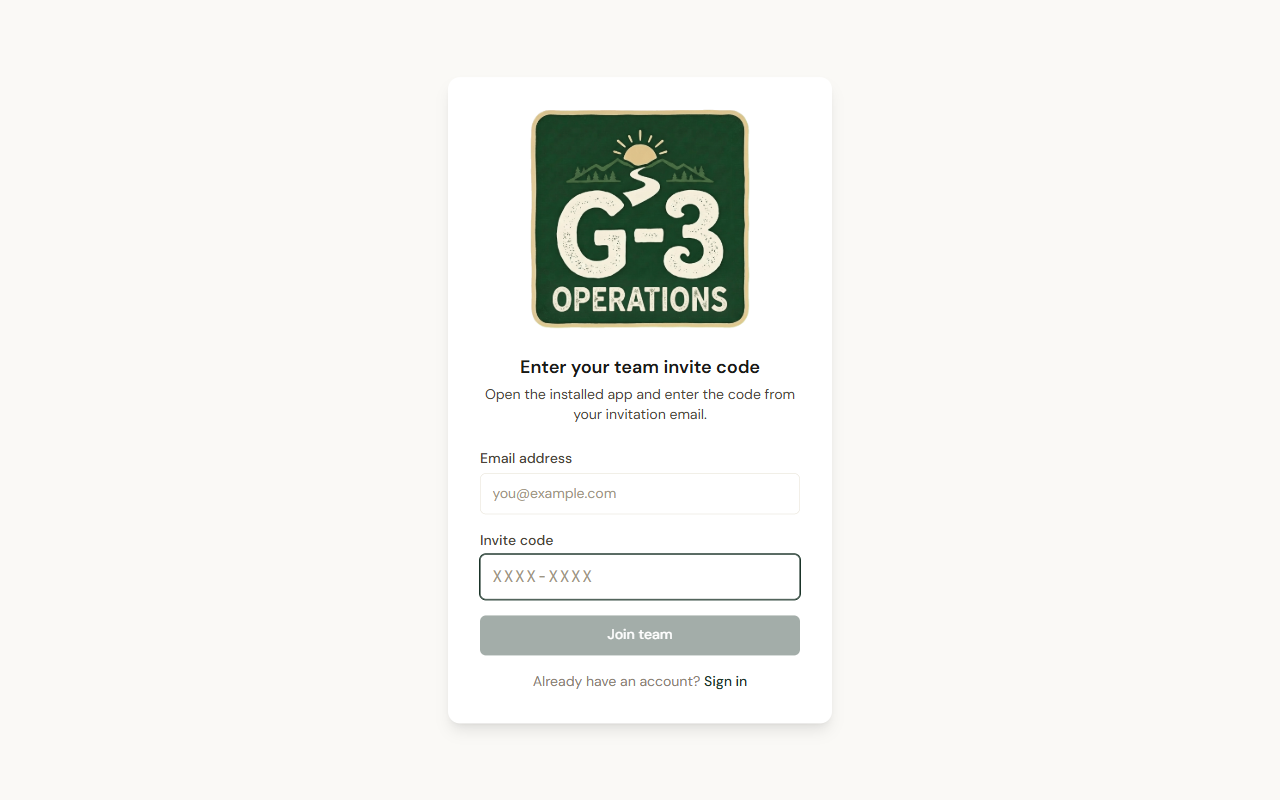
Section titled “Inviting”Under Team, type an email address, pick a role, Invite. Roles are member and admin; an admin can also manage members. The invitee gets an email with a code. You also get an Invite link to send them yourself, with Copy invite link: it is shown once and works for seven days. The link signs a new colleague straight in. Someone who already has a G-3 Operations sign-in finishes with the emailed code instead, at Enter your team invite code, with that address.
The header shows 3 of 5 seats. At the limit the form is disabled: You’re using all 5 seats. Contact us to add more before inviting another teammate.
If the address already has its own G-3 Operations account: That address already has a G-3 Operations account. Contact us and we’ll move it into this team.
What a member can do
Section titled “What a member can do”Open, edit and duplicate any of the team’s tours and templates. Make a new tour from a team template. Archive tours. Permanent delete stays with the account owner, and so does Billing: a member or admin who opens it lands on Settings.
Removing
Section titled “Removing”Remove on a member’s row asks Remove from the team? and tells you the consequence: they lose access to the team’s tours immediately, and their tours stay with the team — nothing is deleted. The seat is freed.
The owner cannot be removed, and you cannot remove yourself.
Tour managers are not seats
Section titled “Tour managers are not seats”A colleague who only needs one tour is a tour manager, free, no seat.