Reading the day
You see one stop at a time. Swipe, or use the arrows, to move to the next.
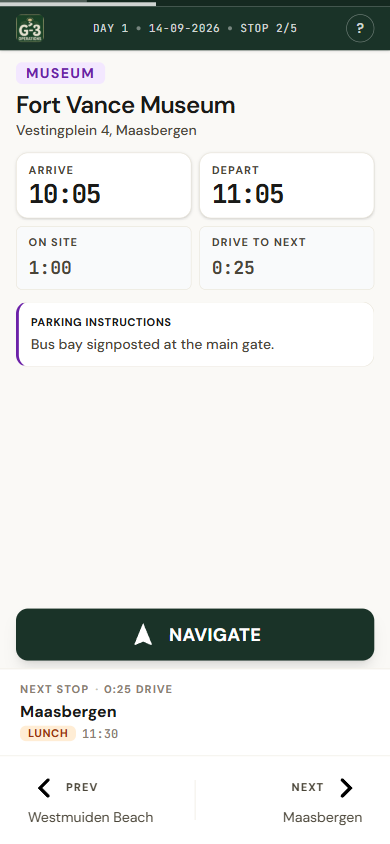
The strip at the top says which day you are on and which stop, for example Day 1 · Stop 2/5.
One stop
Section titled “One stop”- The name of the stop, with a coloured badge saying what kind it is: Tour stop, Comfort break, Lunch, Fuel, Hotel, Museum. Dropoff, Pickup and Drive-by get a bolder badge, because those are the ones where the coach moves without the group.
- The address or Plus Code. Tap it to copy it. It says Copied! for a moment.
- Arrive, Depart, On site and Drive to next. A dash means the guide has not filled it in.
- Parking Instructions, or Driving Instructions on a drive-by, written by the guide.
- Recommended Route, when the guide has written one.
- NAVIGATE opens the stop in Google Maps, or in whatever navigation link the guide chose. It is the only button that leaves the app.
A red LAST STOP TODAY badge means exactly that.
Times change
Section titled “Times change”When the guide changes the plan, your screen changes with it. Nobody has to ring you.
If your phone loses signal you see a red Offline pill at the top. If it has not heard from the plan in a while you see an amber one, for example Updated 12 min ago. When everything is fresh there is nothing there.
The whole day at once
Section titled “The whole day at once”Tap the logo at the top left for All Stops, the whole tour as one list. Every day is shown under a gold Day badge. The stop you are on is marked Current; stops you have passed are dimmed. Tap any stop to jump to it.
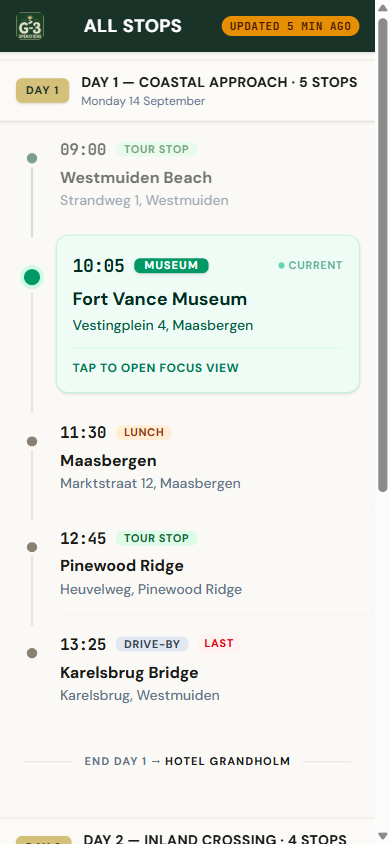
When you open the link on a tour day, it lands on the next stop still to come. On any other day it opens on the list.
Moving to the next day
Section titled “Moving to the next day”Swipe past the last stop of the day and you reach the end-of-day screen, which takes you to the next day. Or pick a stop on the list.