
Sharing with drivers
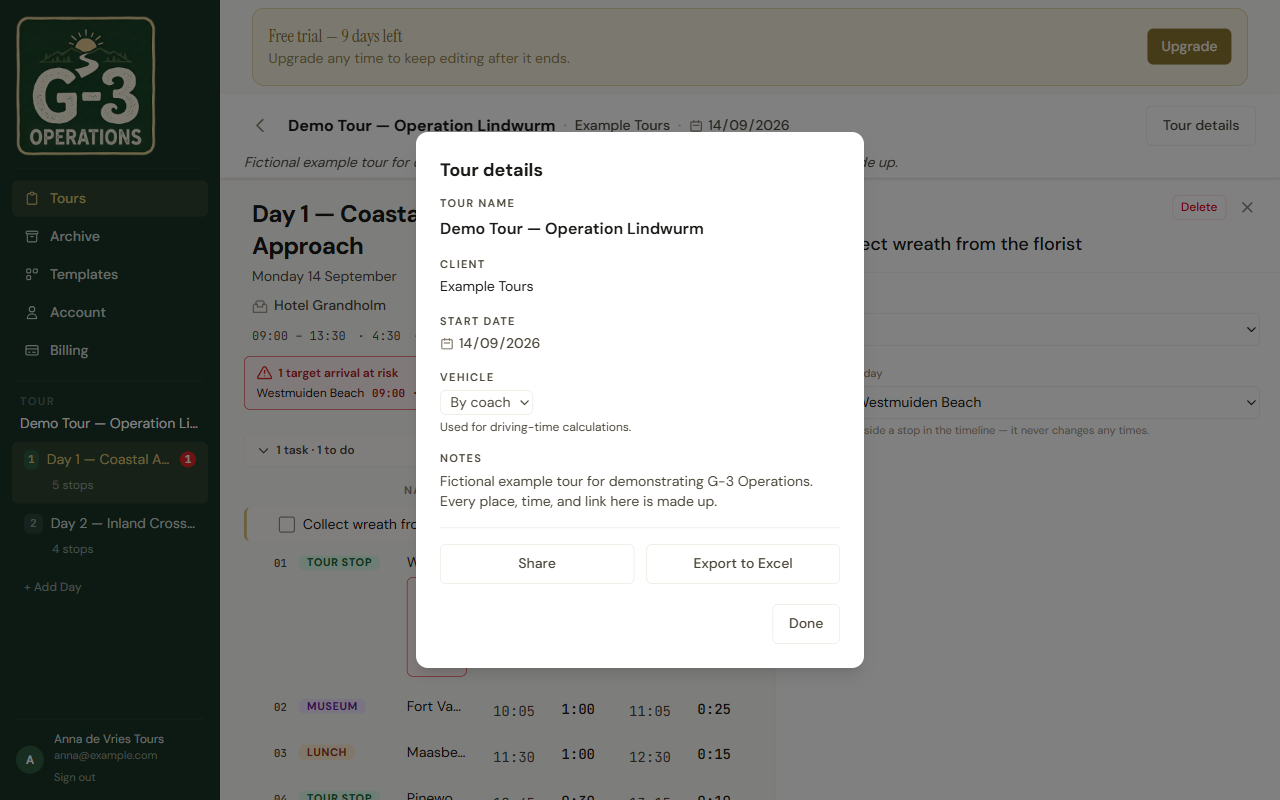
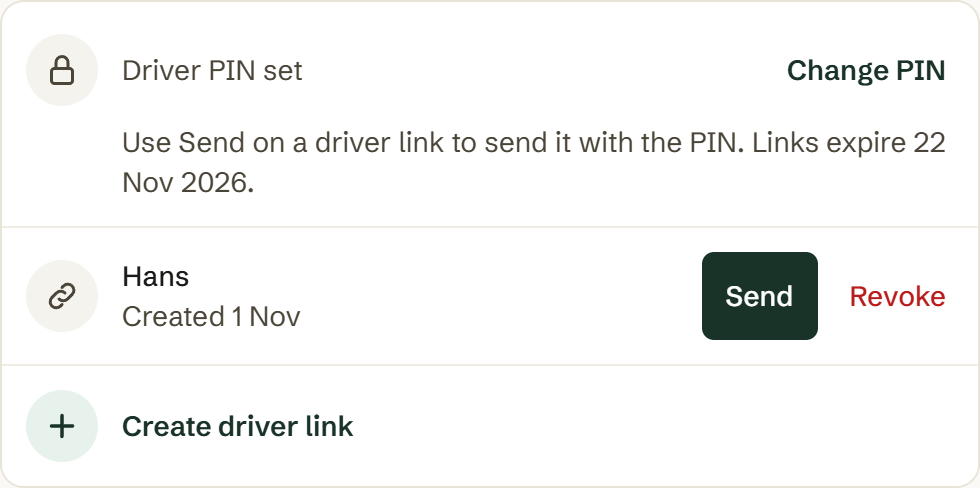
Open Tour details at the top right of the tour, then Share. The panel is called Tour Access. Under Driver links: set a PIN, tap Create driver link, then tap Send on the new link. Send to driver hands over the link and the PIN in one ready-written message.
The PIN
Section titled “The PIN”One PIN per tour, four to eight digits, shared by every link on that tour. Set PIN, type it, Save. Until you do, the panel warns No PIN set — driver links won’t open until you set one, and that is literally true.
The PIN is never in the link or the QR code. The ready-written message holds both, and anyone who gets that message has the tour, so send it to the driver and nobody else.
Change PIN cuts every driver session on the tour within about an hour. They type the new one and carry on.
Make as many as you like, each with an optional label: the driver’s name, or the coach company.
The link is https://…/driver/ followed by a long token. It carries no PIN.
Sending a link
Section titled “Sending a link”Send on a link opens a card under it, headed Send this to Hans, or Send this to the driver if the link has no label. It shows a QR code, the PIN, the Link, and a Message you can edit. Send to driver opens your phone’s share sheet, so it goes out by WhatsApp, text or whatever you use; Copy puts the message on the clipboard. If the driver is standing next to you, they can scan the QR code, and you tell them the PIN. Done closes the card.
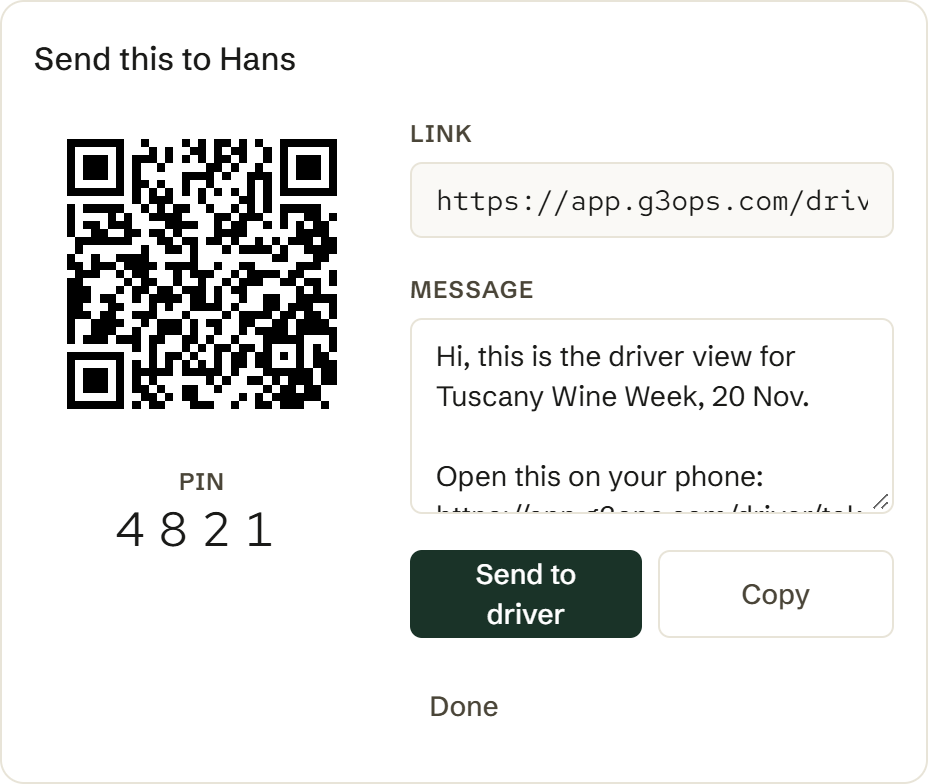
The app keeps only a scrambled copy of the PIN, so it can show it only straight after you set it. Any other time, the card asks you to type it: enter it under Driver PIN and tap Use this PIN. Forgotten it? Change PIN, which signs out drivers using the tour now.
Expiry
Section titled “Expiry”Links stop working on their own the day after the tour’s last dated day. The panel tells you the date: Links expire 22 Nov 2026. A tour with no dates has no expiry, and the panel says No auto-expiry (this tour has no dated days). Date the tour, or revoke by hand.
Revoking
Section titled “Revoking”Revoke on a link asks: Revoke “…”? This ends the driver view for everyone currently using this tour (within about an hour). The hour is real. A driver’s phone holds a short-lived credential and loses the tour when it next refreshes. A driver already looking at the day keeps seeing it until then.
There is no regenerate. Revoke the old link and create a new one.
What the driver sees
Section titled “What the driver sees”Read Opening your link and Reading the day, written for them. Notes marked internal only never reach a driver; parking, route and address do.