Offline, installing and updates
G-3 Ops runs in the browser and can be installed to your home screen. It keeps working without signal and updates itself.
Installing
Section titled “Installing”The menu has an Install app button. On Android and desktop Chrome it installs straight away. On an iPhone it tells you what to do: Tap Share in Safari, then Add to Home Screen.
Installed, it opens full-screen with its own icon.
Signing in to the installed app
Section titled “Signing in to the installed app”On an iPhone the installed app does not share your browser’s sign-in, and an emailed login link opens the browser, not the app. So the app has its own way in: a sign-in code.
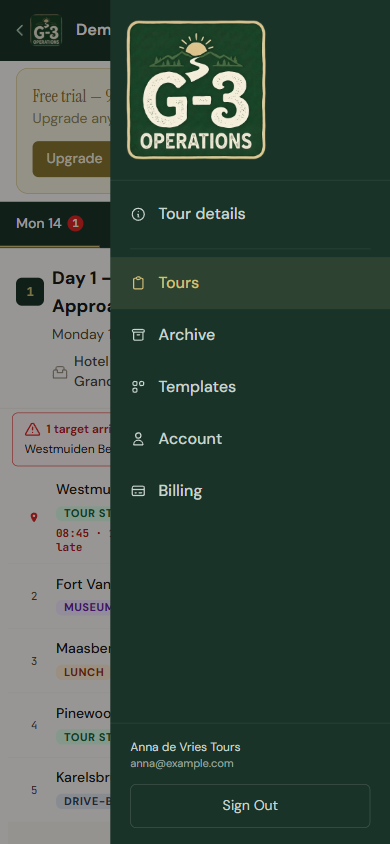
- In the browser, where you are signed in, open the menu and choose Use on home screen.
- Copy code. It is twelve digits, works once, and lasts five minutes.
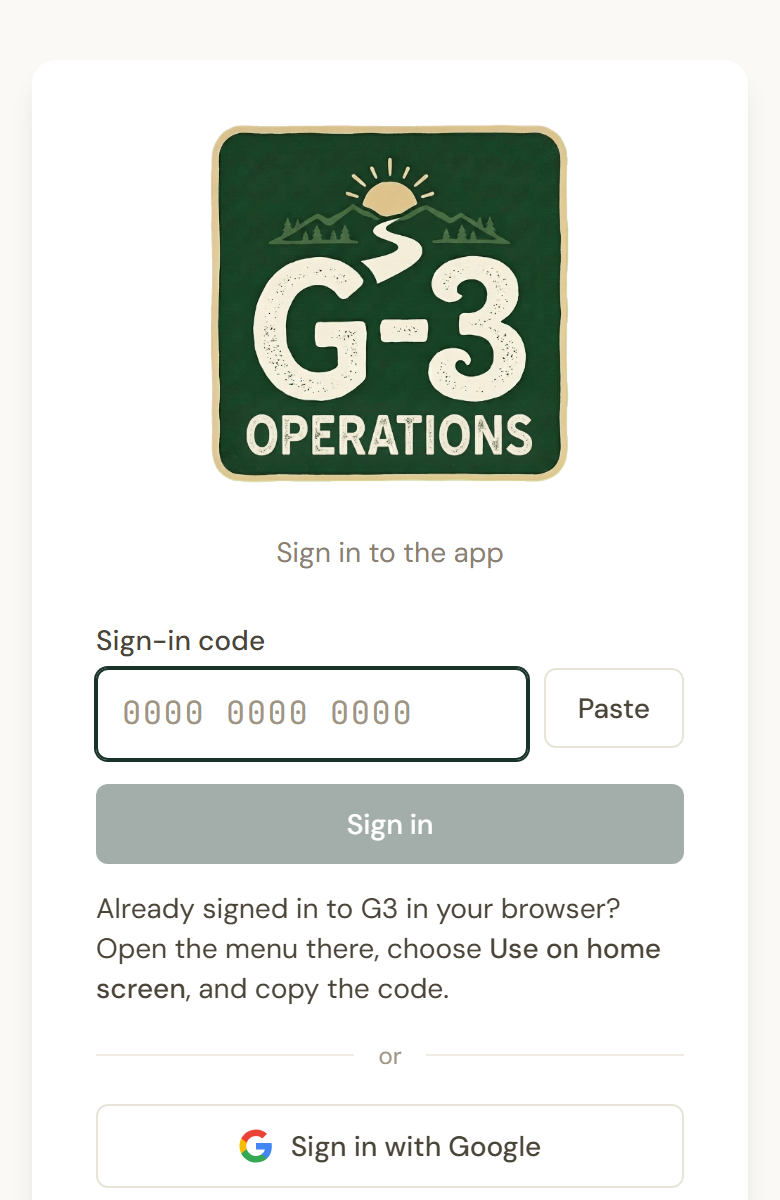
- Open the app from your home screen, tap Paste, then Sign in.
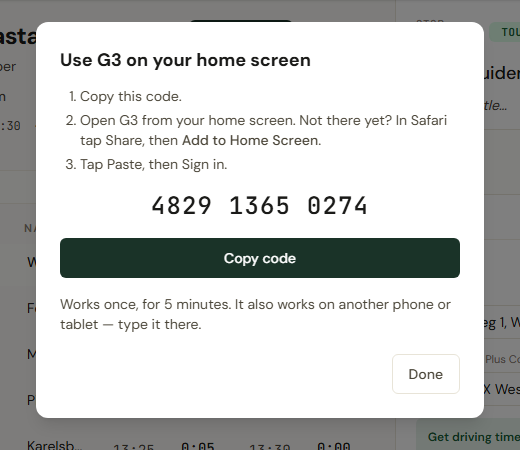
The code also works on another phone or tablet: type it there. If it has expired, Get a new code. Guides can also use Sign in with Google inside the app. Tour managers, who have no Google sign-in with us, use the code.
Without signal
Section titled “Without signal”Tours you have opened stay on the device. You can read and edit them on a coach in a tunnel; the changes go up when signal returns. Two people changing the same value offline: the later save wins.
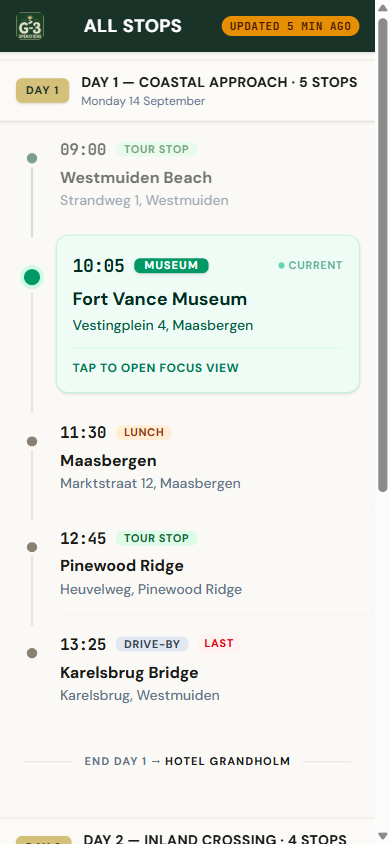
Driving-time calculation and invitations need a connection. Drivers see an Offline pill on their screen when theirs drops, and an amber Updated … ago pill when the plan has not refreshed for a while.
Updates
Section titled “Updates”When a new version is ready you get a gold bar: A new version of G-3 Ops is available. Reload. Tap it. The app checks for updates every few minutes while it is open.
If an import says the file uses a newer format than the app supports, that is the same thing: reload, then import.