
Importing and exporting a spreadsheet
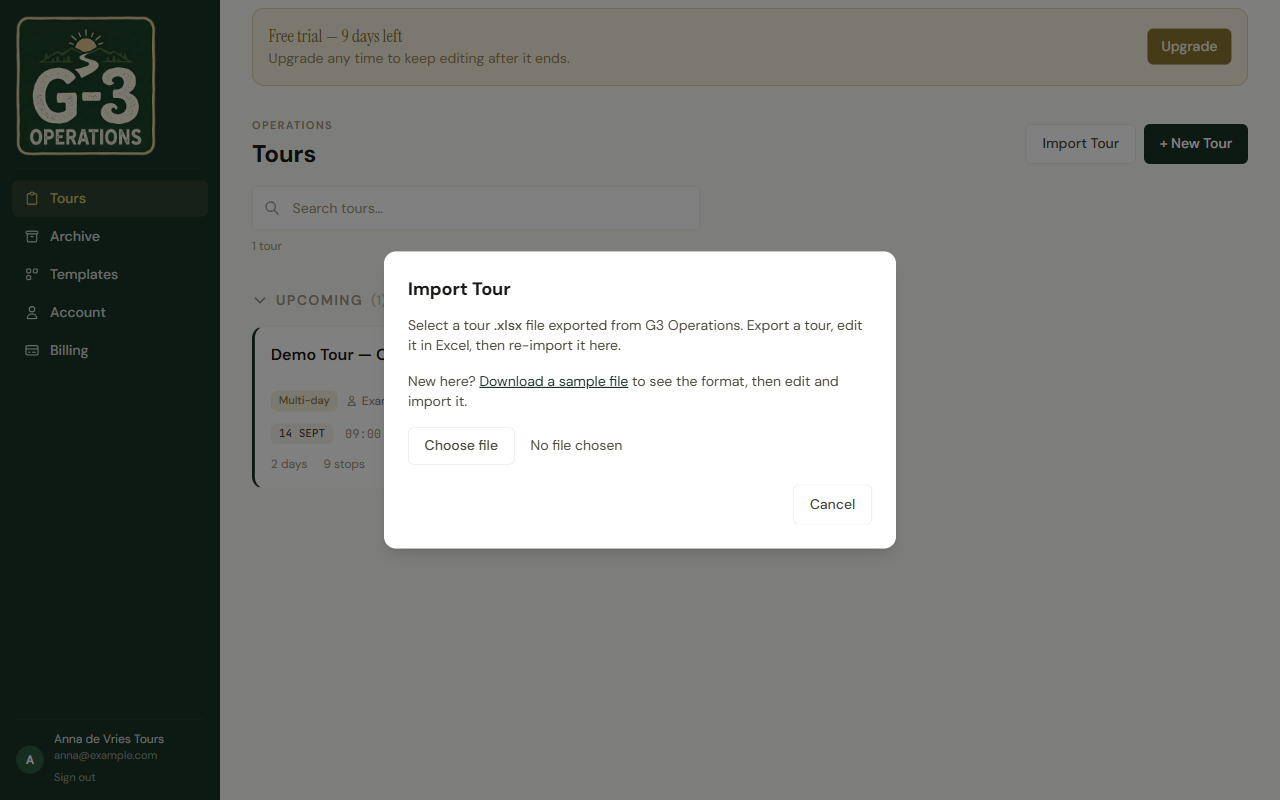
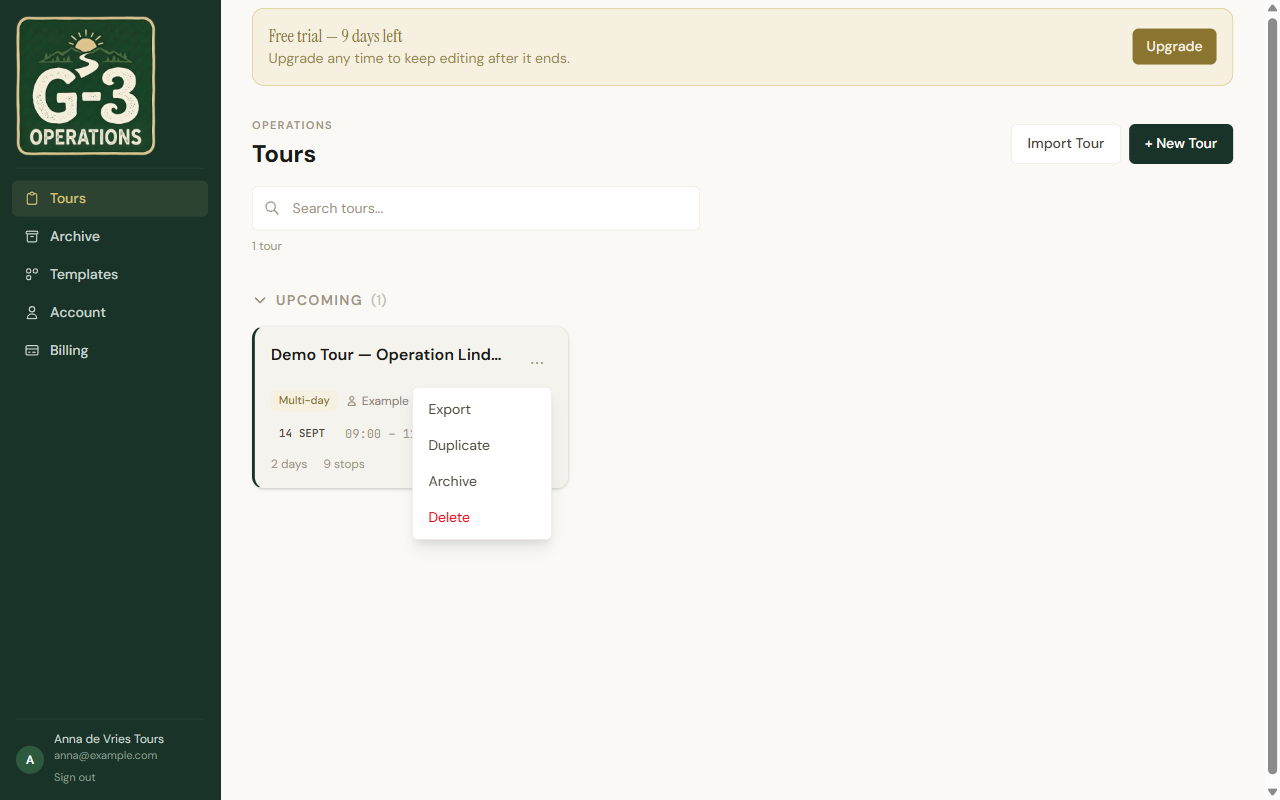
Export on a tour’s menu downloads an Excel file named after the tour. Import Tour on the home screen, desktop only, turns such a file into a new tour.
Import always makes a new tour. It never changes the one you exported from.
The shape of the file
Section titled “The shape of the file”Above the table, four label-and-value rows: Tour, Client, Start Date, Notes.
Then a header row with these columns, in this order:
Name, Subtitle, Label, Arrive, On Site, Drive, Plus Code, Address, Nav URL, Parking, Route, Extra Info, Target, Driver Actions — machine data, do not edit
Then one row per stop. A row whose Name starts with ## begins a new day: the rest of that cell is the day’s title, the Subtitle cell holds the hotel, the Label cell an ISO date.
Tasks are rows whose Name is exactly [[task]]. They point at a stop by position, so reorder rows carefully.
Tap Download a sample file in the import dialog rather than building this from memory.
Preparing your own
Section titled “Preparing your own”Only Label, Target and the driver-actions column are optional. Extra columns are ignored, so an older file with Costs or Family still imports. Missing required ones fail with Missing required column(s) and the list.
A stop with no On Site gets thirty minutes and a warning. No Drive gets fifteen. Times as 09:30; durations as 1:30.
When it fails
Section titled “When it fails”- Could not find the column header row. The header row is missing or misspelt.
- No valid stops found. Every row was blank or a day marker.
- This file uses a newer tour format than this app supports. Reload the app to update it, then try again.
- Could not read the file as an Excel workbook. It is not an
.xlsx.
Warnings are shown before you confirm; the import still goes ahead.